|
Among the various measurement packages is the original PING (Packet InterNet Groper) program used over the last six years for numerous tests and measurements of the Internet system and its client nets. This program contains facilities to send various kinds of probe packets, including ICMP Echo messages, process the reply and record elapsed times and other information in a data file, as well as produce real-time snapshot histograms and traces.
– Mills, D. L; “Internet Delay Experiments”; RFC 889; Dec 1983. |
|
This program is intended for use in network testing, measurement and management. It should be used primarily for manual fault isolation. Because of the load it could impose on the network, it is unwise to use ping during normal operations or from automated scripts…
– Muuss, Mike; Ping source code comments; 7 August 1992. |
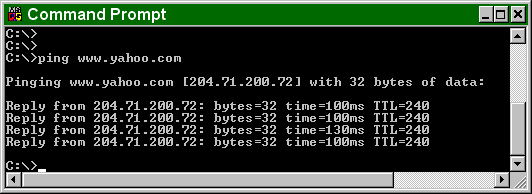
The Internet Ping command bounces a small packet off a domain or IP address to test network communications, and then tells how long the packet took to make the round trip. The Ping command is one of the most commonly used utilities on the Internet by both people and automated programs for conducting the most basic network test: can your computer reach another computer on the network, and if so how long does it take?
Every second of the day there are untold millions of pings flashing back and forth between computers on the Internet like a continuous shower of electronic neural sparks. The following subsections provide information on how Ping was invented, how Ping works, how to use Ping, Ping web sites, and info on the original Unix Ping version.
How Ping was invented. The original PING command stood for “Packet Internet Groper”, and was a package of diagnostic utilities used by DARPA personnel to test the performance of the ARPANET. However, the modern Internet Ping command refers to a program was written by Mike Muuss in December, 1983, which has since become one of the most versatile and widely used diagnostic tools on the Internet. Muuss named his program after the sonar sounds used for echo-location by submarines and bats; just like in old movies about submarines, sonar probes do sound something like a metallic “ping”.
How Ping works. The Internet Ping program works much like a sonar echo-location, sending a small packet of information containing an ICMP ECHO_REQUEST to a specified computer, which then sends an ECHO_REPLY packet in return. The IP address 127.0.0.1 is set by convention to always indicate your own computer. Therefore, a ping to that address will always ping yourself and the delay should be very short. This provides the most basic test of your local communications.
How to use Ping. You can use the Ping command to perform several useful Internet network diagnostic tests, such as the following:
- Access. You can use Ping to see if you can reach another computer. If you can’t ping a site at all, but you can ping other sites, then it’s a pretty good sign that your Internet network is fine and that site is down. On the other hand, if you can’t ping any site, then likely your entire network connection is down — try rebooting.
- Time & distance. You can use the Ping command to determine how long it takes to bounce a packet off of another site, which tells you its Internet distance in network terms. For example, a website hosted on your neighbor’s computer next door with a different Internet service provider might go through more routers and be farther away in network distance than a site on the other side of the ocean with a direct connection to the Internet backbone.
If a site seems slow, you can compare ping distances to other Internet sites to determine whether it is the site, the network, or your system that is slow. You can also compare ping times to get an idea of which sites have the fastest network access and would be most efficient for downloading, chat, and other applications.
- Domain IP address. You can use the Ping command to probe either a domain name or an IP address. If you ping a domain name, it helpfully displays the corresponding IP address in the response.
You can run the ping command on a Windows computer by opening an MSDOS window and then typing “ping” followed by the domain name or IP address of the computer you wish to ping. You can list the available options for the Windows ping command with “ping -?”.
Online ping. If you can’t use the Ping command from your own computer because of a firewall or other restriction, or want to do an Internet ping from another location than your own, you can use one of the following websites that offer online ping services:
Remember when doing an online ping that the packets are sent from that website, so the times that are returned reflect the path from that location and not from your computer. Nevertheless, a ping from an online website can be useful to test if an address can be reached from different places around the Internet, to do comparative timing to test how long it takes to reach one site compared to others.
If the times returned by several online ping sites to an Internet address are consistently long, then the destination site’s network is likely having problems. On the other hand, if you can ping an address from an online ping site but not from your own computer, then there is likely some block in your network preventing you from communicating with that site.
Unix version. Muuss originally created the ping command for the Unix system, with the options summarized below:
ping [-q] [-v] [-R] [-c Count] [-i Wait] [-s PacketSize] Host
|
Option |
Example |
Definition |
|
ping -c count |
ping -c 10 |
Specify the number of echo requests to send. |
|
Ping -d |
ping -d |
Set the SO_DEBUG option. |
|
Ping -f |
ping -f |
Flood ping. Sends another echo request immediately after receiving a reply to the last one. Only the super-user can use this option. |
|
Ping host |
ping 121.4.3.2 |
Specify the host name (or IP address) of computer to ping |
|
ping -i wait |
ping -i 2 |
Wait time. The number of seconds to wait between each ping |
|
ping -l preload |
ping -l 4 |
Sends “preload” packets one after another. |
|
Ping -n |
ping -n |
Numeric output, without host to symbolic name lookup. |
|
Ping -p pattern |
ping -p ff00 |
Ping Pattern. The example sends two bytes, one filled with ones, and one with zeros. |
|
Ping -q |
ping -q |
Quiet output. Only summary lines at startup and completion |
|
ping -r |
ping -r |
Direct Ping. Send to a host directly, without using routing tables. Returns an error if the host is not on a directly attached network. |
|
Ping -R |
Ping -R |
Record Route. Turns on route recording for the Echo Request packets, and display the route buffer on returned packets (ignored by many routers). |
|
ping -s PacketSize |
ping -s 10 |
Sets the packet size in number of bytes, which will result in a total packet size of PacketSize plus 8 extra bytes for the ICMP header |
|
ping -v |
ping -v |
Verbose Output. Lists individual ICMP packets, as well as Echo Responses |